---
updatedAt: 2025-06-27T13:56:27.000Z
agentTools:
projectIndex: https://docs.synchronet.com/llms.txt
---
# Configure WorkSpaces Pools
Click v4.1.1 adds support for viewing WorkSpaces Pools directories, managing power state, viewing and terminating user sessions.
### Enable WorkSpaces Pools Management
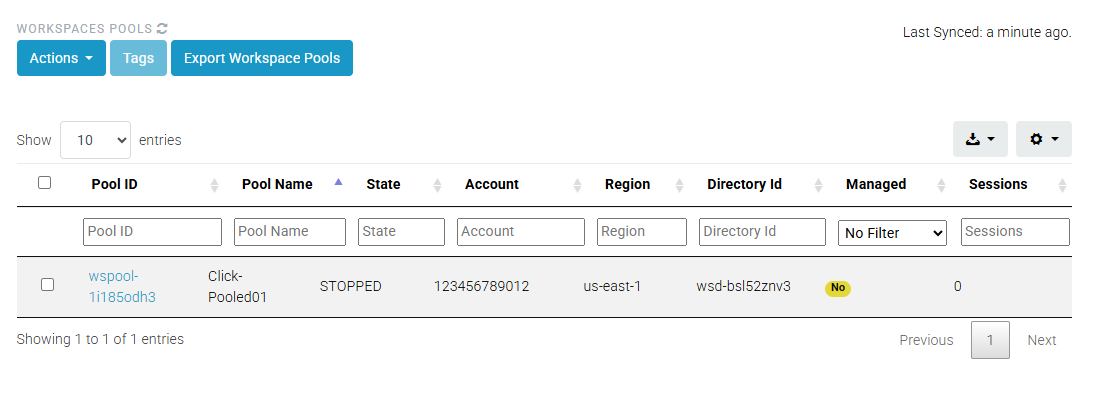
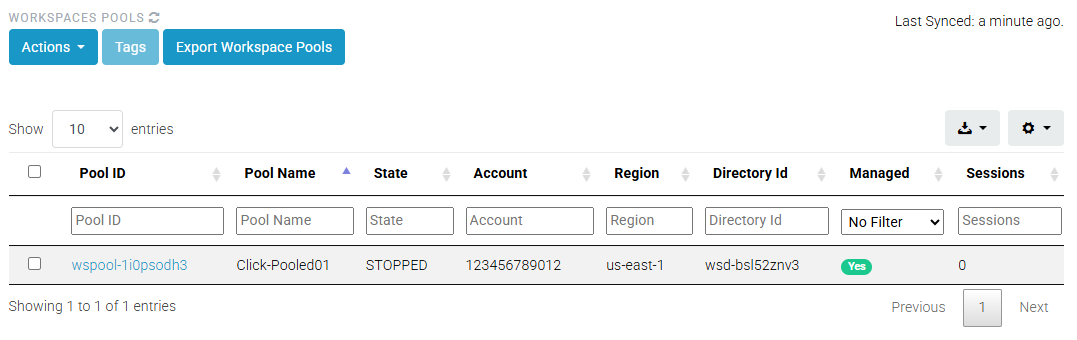
By default, Click will not manage any WorkSpaces Pools functionality. Each pool must be set to **Managed** to enable Click integration with WorkSpaces Pools.
1. In the Click Administration Console, navigate to **WorkSpaces Pools**
2. In the list of Pools, select the Pool(s) you would like Click to manage
3. Choose **Actions > Manage** to enable Management
### Viewing User Sessions
To view user sessions of a Managed Pool, navigate to the **WorkSpaces Pools** section of the Click Administration Console. Click the **Pool ID** of the pool you would like to manage. You are able to see and export the following information about user sessions:
* User ID
* Connection State
* Authentication Type
* ENI ID
* ENI Private IP
* Expiration Time
* Instance ID
* Session ID
* Start Time
* WorkSpaces Pool ID
### Terminating User Sessions
Click can terminate user sessions on WorkSpaces Pools. This can be useful when helping troubleshoot user connections, or for ensuring all users are off of a Pool prior to performance maintenance.
1. In the Click Administration Console, navigate to **WorkSpaces Pools** and select the pool with the user session(s) you'd like to manage.
2. Select the check box next to any user session(s) to terminate.
3. Click **Actions > Terminate Session(s)** to terminate the user sessions